Fix Windows 11 Activation Error 0xc004c003: 7 Proven Solutions
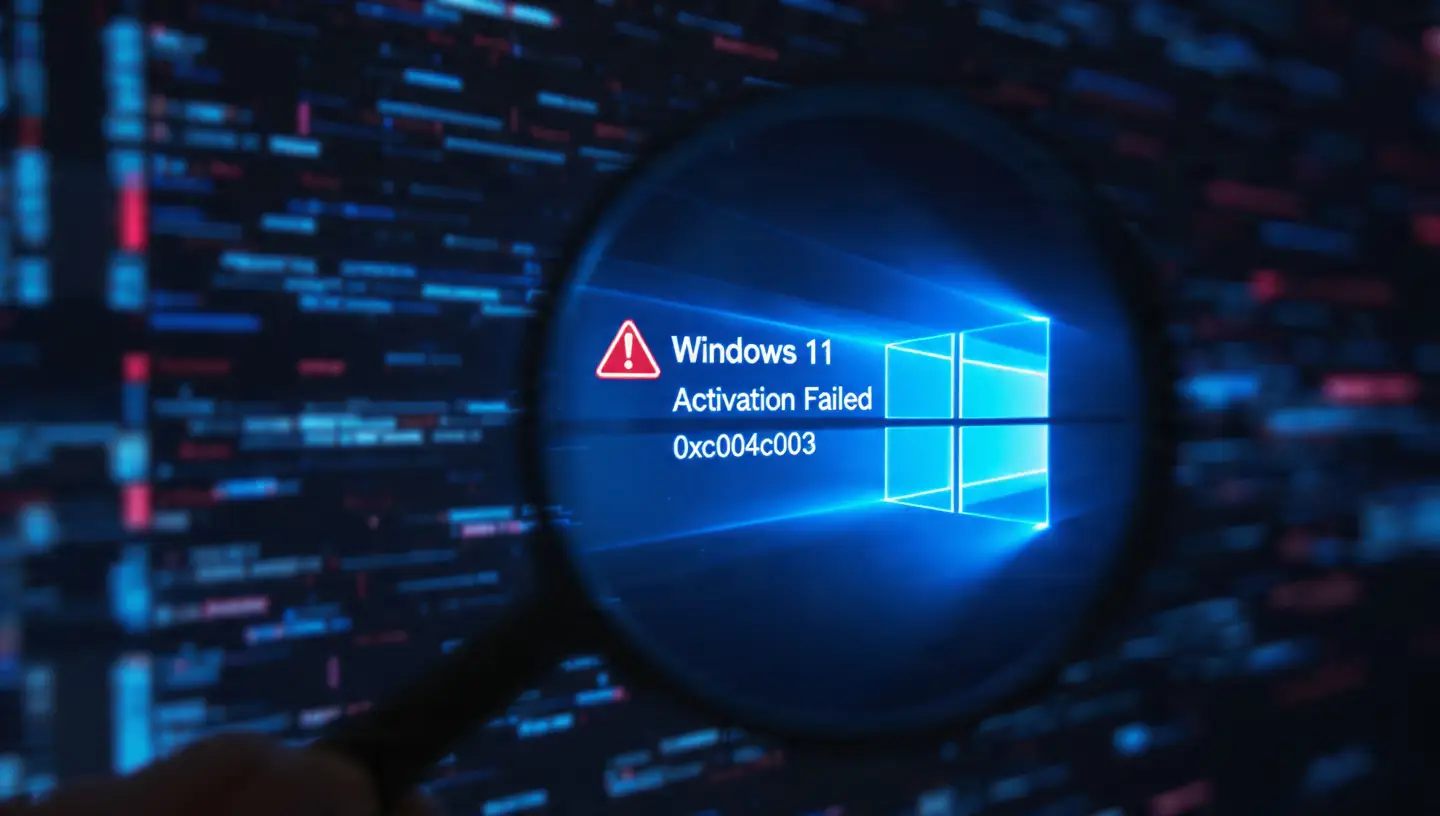
To fix Windows 11 activation error 0xc004c003, you must first understand that this annoying issue usually prevents you from personalizing your newly installed or upgraded operating system. When this error strikes, you are met with a frustrating watermark on your desktop and restricted access to vital personalization settings. But do not panic. This comprehensive guide will walk you through exactly why this happens and how you can resolve it quickly and safely.

Every year, thousands of users encounter licensing bugs when switching hardware, installing fresh copies, or updating their firmware. Whether you built a custom PC or purchased a pre-built laptop, you need a valid digital license or product key to assure Microsoft that your copy is genuine. Let us dive deep into the ultimate methods to fix Windows 11 activation error 0xc004c003.
Why Does the 0xc004c003 Error Occur?
Before attempting to fix Windows 11 activation error 0xc004c003, diagnosing the root cause can save you hours of troubleshooting. The error code 0xc004c003 translates directly to “The activation server determined the specified product key is blocked.” This can happen for several technical reasons:
- Hardware Changes: Replacing your motherboard or CPU can sever the link between your hardware ID and your digital license.
- Invalid Product Keys: Purchasing a cheap, gray-market OEM key that Microsoft has flagged and blacklisted.
- Version Mismatches: Attempting to use a Windows 11 Home key on a Windows 11 Pro installation.
- Server Overloads: Occasionally, Microsoft’s own activation servers experience downtime, leading to false-positive error codes.
- Corrupt Registry Files: Remnants of older Windows installations interfering with the new license registration process.
How to Fix Windows 11 Activation Error 0xc004c003: 7 Proven Methods
Now that we have established the primary culprits behind this licensing blockade, let us walk through the practical steps to fix Windows 11 activation error 0xc004c003. We recommend following these solutions in chronological order, as they are arranged from the easiest to the most advanced.
1. Run the Official Windows Activation Troubleshooter
The most straightforward way to fix Windows 11 activation error 0xc004c003 is by utilizing the built-in diagnostic tools provided by Microsoft. The Activation Troubleshooter is specifically designed to bridge the gap between your hardware and your Microsoft account.
- Press Windows Key + I to open the Settings application.
- Navigate to System > Activation.
- If your system is not activated, you will see a Troubleshoot button. Click it.
- Allow the utility to scan for digital licenses attached to your Microsoft account.
- If you recently changed hardware, select the option that says “I changed hardware on this device recently” and follow the prompts.
2. Verify Your Product Key and Edition Match
A frequent reason people fail to fix Windows 11 activation error 0xc004c003 is a version mismatch. If your machine came pre-installed with Windows 11 Home, but you accidentally installed Windows 11 Pro using a USB creation tool, your embedded motherboard key will be rejected.
To verify this, check your system properties by right-clicking the Start button and selecting System. Look at your Windows specifications. Ensure that the key you purchased explicitly matches the edition you have installed. If they do not match, you must either purchase the correct key or reinstall the correct version of Windows 11.
3. Use Command Prompt to Fix Windows 11 Activation Error 0xc004c003
If the graphical interface fails you, the Command Prompt provides a powerful backend approach to fix Windows 11 activation error 0xc004c003. By using the Software Licensing Management Tool (slmgr), you can clear out corrupt license data and force a fresh connection to the servers.
- Click the Start button, type cmd, right-click on Command Prompt, and select Run as administrator.
- Type the following command to uninstall your current, blocked product key, then press Enter: slmgr.vbs /upk
- Next, clear the product key from the registry by typing: slmgr.vbs /cpky
- Now, reinstall your genuine 25-character product key by typing the following (replace the X’s with your actual key): slmgr.vbs /ipk XXXXX-XXXXX-XXXXX-XXXXX-XXXXX
- Finally, force the system to activate by typing: slmgr.vbs /ato
Restart your computer. For many advanced users, this is the most reliable method to fix Windows 11 activation error 0xc004c003.
4. Perform an In-Place Upgrade
Sometimes, core system files related to the software protection service become severely corrupted. When standard commands fail, an in-place upgrade is an excellent way to fix Windows 11 activation error 0xc004c003 without losing your personal files, games, or applications.
To do this, download the official Windows 11 ISO from Microsoft’s website. Mount the ISO file by double-clicking it, and run the setup.exe application. Follow the on-screen instructions, making sure to select “Keep personal files and apps.” This process will rewrite all critical system files and often permanently fix Windows 11 activation error 0xc004c003 by resetting the licensing components.
5. Check for Third-Party Interference
Aggressive third-party antivirus software or firewall configurations can sometimes block the Windows activation service from communicating with external servers. If you are struggling to fix Windows 11 activation error 0xc004c003, try temporarily disabling your antivirus suite. Furthermore, ensure your date and time settings are perfectly synchronized with the internet, as SSL certificate mismatch due to incorrect clocks will instantly block the activation handshake.
6. Wait for Microsoft Server Resolution
You may be desperately trying to fix Windows 11 activation error 0xc004c003 when the fault is entirely out of your hands. During major feature updates or seasonal sales, Microsoft’s activation servers can become overwhelmed. If you know your key is 100% legitimate and purchased from an authorized retailer, wait 24 to 48 hours. Many users report that their systems activate automatically in the background once server traffic stabilizes.
7. Reach Out to Microsoft Official Support
If you have exhausted every digital avenue and still cannot fix Windows 11 activation error 0xc004c003, it is time to consult the creators of the software. If your key was unjustly blocked, a Microsoft technician can verify your proof of purchase and remotely activate your system.
Frequently Asked Questions
Can I fix Windows 11 activation error 0xc004c003 without buying a new key?
Yes, absolutely. If your current key is genuine, methods like using the Activation Troubleshooter or resetting the license via Command Prompt will resolve the issue without requiring a new purchase. You only need to buy a new key if your current one was pirated or blacklisted.
Does a BIOS update trigger this error?
Yes, flashing a new BIOS can sometimes alter your hardware ID profile enough that Windows believes it is on a completely new motherboard. Using the “I changed hardware recently” option in the troubleshooter is the best way to fix Windows 11 activation error 0xc004c003 in this scenario.
Is it safe to use third-party activation scripts?
No. We strongly advise against using third-party KMS activators or unauthorized scripts to bypass or fix Windows 11 activation error 0xc004c003. These tools often harbor malware, ransomware, and can permanently compromise your personal data.
Conclusion
Dealing with system restrictions is never fun, but learning how to fix Windows 11 activation error 0xc004c003 is a manageable process when you follow the right steps. Start with the easiest solutions like the built-in troubleshooter, ensure your installed version matches your key, and don’t hesitate to utilize the Command Prompt for deeper system resets.
By diligently following the methods outlined above, you should successfully fix Windows 11 activation error 0xc004c003, remove the desktop watermark, and unlock the full potential and personalization features of your operating system.


Post Comment