How to Fix Error Code 0xc00000f in Windows 11: 7 Methods
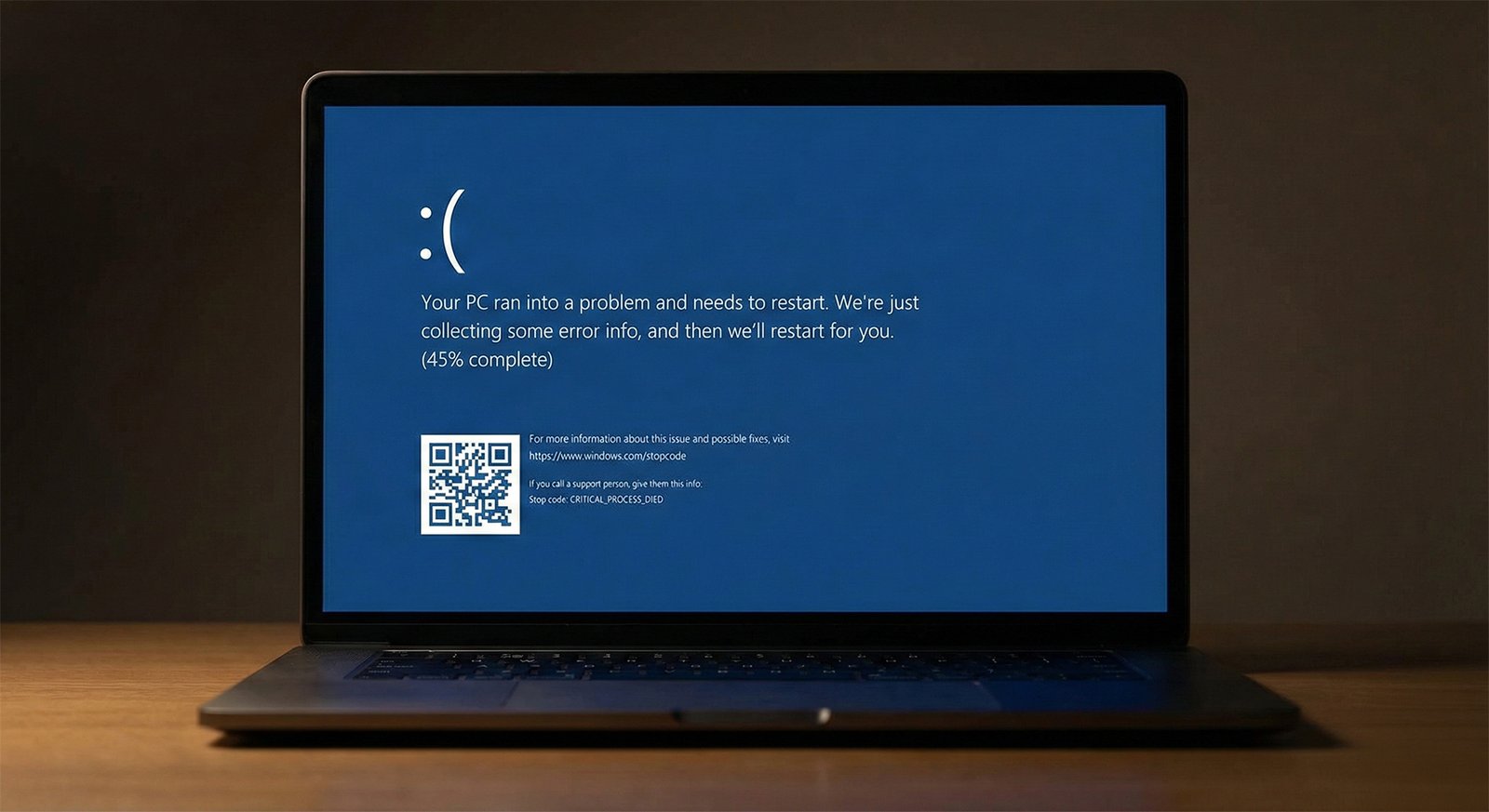
To Fix Error Code 0xc00000f in Windows 11 is the top priority when your computer fails to boot. This critical error, often accompanied by a blue screen stating “Your PC needs to be repaired,” indicates that Windows cannot find the Boot Configuration Data (BCD).
Don’t panic. While it looks scary, your data is usually safe. In this proven guide, we will walk you through 7 detailed methods to repair your system without visiting a service center.
Guide Contents
What Causes Error 0xc00000f?
Before you attempt to Fix Error Code 0xc00000f, it is crucial to understand why it happened. This error is strictly related to the “Boot Manager.” The most common culprits include:
- Corrupt BCD Files: Sudden power outages or forced shutdowns can damage the boot sector.
- Disk Write Errors: Your SSD or HDD might be developing bad sectors.
- Malware Infection: Viruses can target system files in the System32 folder.
- Faulty Peripheral Cables: A loose USB drive can confuse the BIOS boot order.
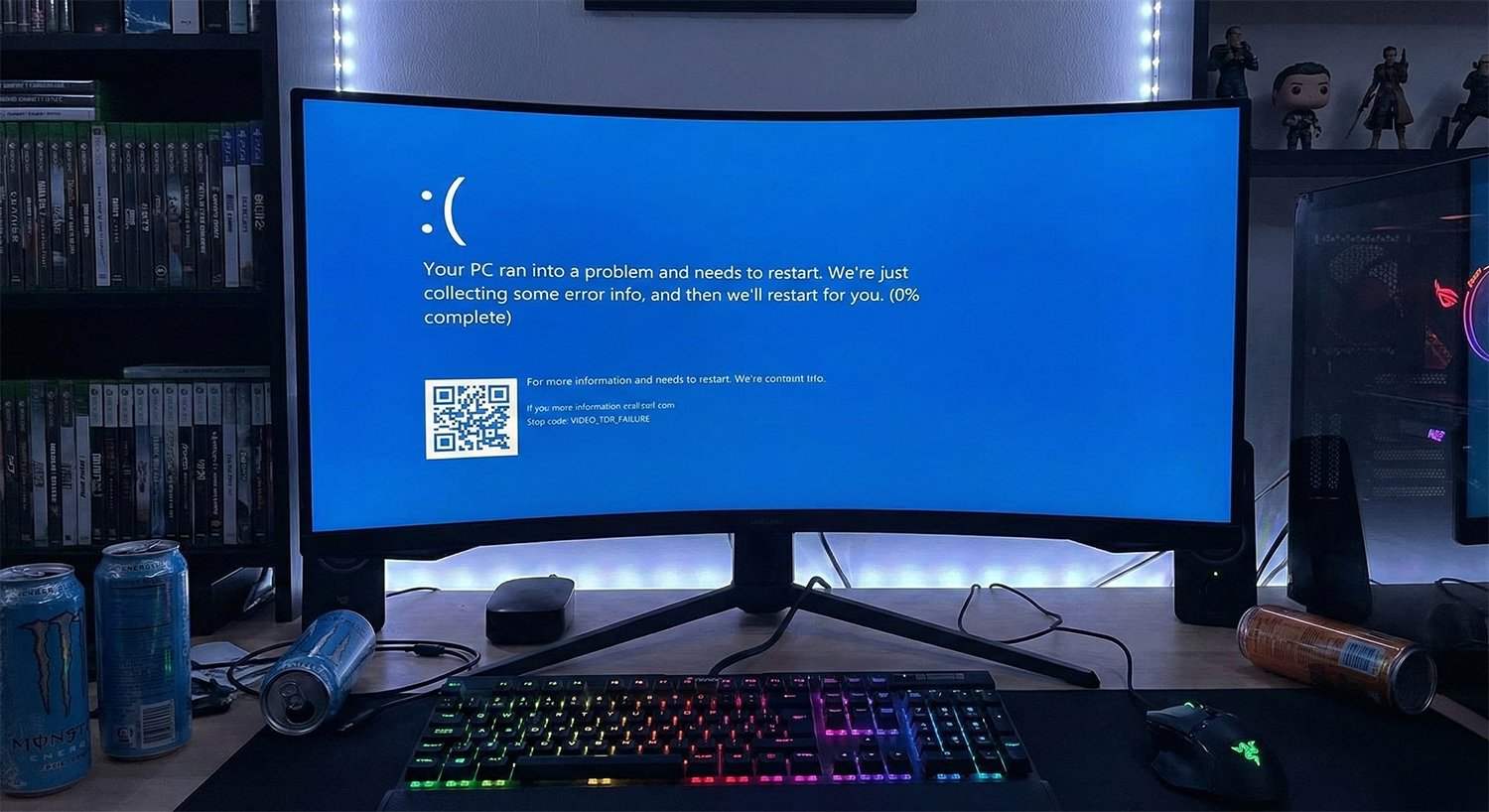
The dreaded Blue Screen of Death (BSOD) on Windows 11 startup.
Method 1: Check Cables & Remove Peripherals
This sounds too simple, but it works 30% of the time. Windows tries to boot from the first detected storage device. If you have a USB drive, external hard disk, or even a smartphone connected via USB, Windows might be trying to read boot files from there.
Action Step: Unplug everything except your mouse, keyboard, and monitor. Restart the PC. If it boots normally, you have successfully managed to Fix Error Code 0xc00000f without technical tools.
Method 2: Run Automatic Startup Repair
Windows 11 includes a built-in diagnostic tool. To access it, you will need a Windows Installation Media (USB).
- Insert your Windows 11 Bootable USB.
- Boot from the USB and select your language.
- Click “Repair your computer” located at the bottom left.
- Navigate to Troubleshoot > Advanced Options > Startup Repair.
Windows will scan your PC and attempt to replace missing BCD files automatically.
Method 3: Rebuild BCD with Command Prompt
If the automatic repair failed, manual intervention is required. This is the most effective method to Fix Error Code 0xc00000f permanently. You will need to use the Command Prompt from the “Advanced Options” menu.
bootrec /fixboot
bootrec /scanos
bootrec /rebuildbcd
Instructions: Type these commands one by one and hit Enter. If it asks to “Add installation to boot list,” type Y and press Enter.
Method 4: Run Disk Check (CHKDSK)
Sometimes, the error is caused by physical damage or “bad sectors” on your hard drive. The Check Disk utility can identify and isolate these sectors.
Open Command Prompt again and type the following command:
Note: This process can take up to an hour. Do not turn off your computer. Once finished, restart and check if the error persists.
Method 5: System Restore
If you recently installed a driver or a Windows Update, that might be the cause. System Restore rolls back your computer to a previous state when it was working perfectly.
Go to Troubleshoot > Advanced Options > System Restore. Select a date before the error started appearing. This will not delete your personal files, but it will remove recently installed apps.
Method 6: Clean Install Windows 11
If methods 1 through 5 failed to Fix Error Code 0xc00000f, your operating system files are likely corrupted beyond repair. The only solution is a fresh installation.
You can download the official ISO file directly from the Microsoft Website.
Note on Licensing: A fresh install often deactivates your Windows. Buying a key from Microsoft costs over $200. We recommend getting a genuine OEM license for a fraction of the cost.
🔥 Special Offer: Windows 11 Pro Key
Don’t let a corrupted system stop your work. Get a fresh, lifetime license key for Windows 11 Professional instantly.
Get Windows 11 Key (-80% OFF) →Instant Delivery via Email • 100% Genuine • Trusted by Thousands
Frequently Asked Questions
Will I lose my data with Error 0xc00000f?
Not necessarily. The error is with the “boot” files, not your personal data. However, if you choose to “Clean Install” Windows, you will lose data on the C: drive.
Can I fix Error 0xc00000f without a USB?
It is difficult. If your PC has a “Recovery Partition,” you might be able to access the troubleshooting menu by interrupting the startup process 3 times (holding the power button). Otherwise, a USB is required.
We hope this extensive guide helped you Fix Error Code 0xc00000f. If you found this article helpful, consider sharing it on social media to help others facing the Blue Screen of Death!


Post Comment